
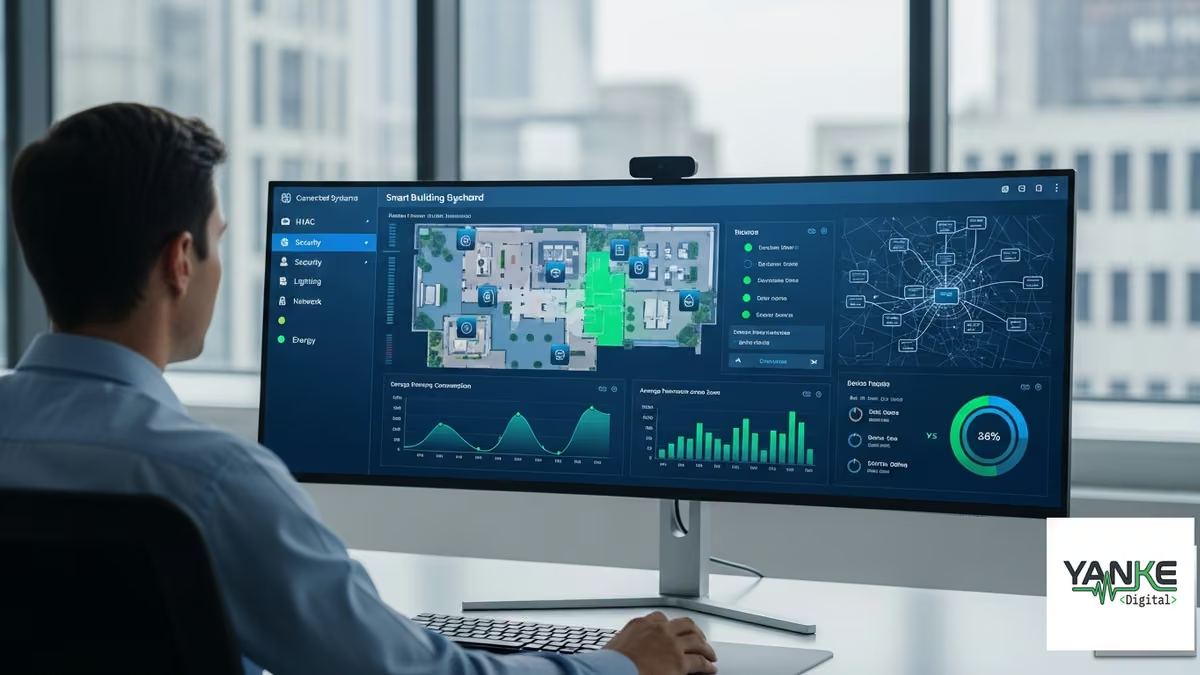
Building automation troubleshooting can feel overwhelming when systems fail, devices disconnect, or integrations break down. Whether you’re managing a commercial office, multi-family residential property, or smart home, integration problems disrupt operations, waste energy, and frustrate occupants. This guide walks you through the most common building automation troubleshooting scenarios—from connectivity issues to software conflicts—and provides practical, actionable fixes you can implement today.
Why Building Automation Troubleshooting Matters
A well-designed smart system should work seamlessly in the background. But when building automation troubleshooting becomes necessary, the cost of downtime adds up fast. Tenants complain about temperature swings. Security systems miss alerts. Energy consumption spikes. Maintenance teams waste hours chasing phantom problems.
The root cause often isn’t a single device failure—it’s an integration problem. Devices from different manufacturers don’t communicate properly. Network protocols conflict. Software updates break compatibility. Without a systematic approach to building automation troubleshooting, you’re left guessing.
That’s why understanding common integration problems and their solutions is essential for anyone managing smart buildings. Let’s dive into the seven most frequent issues and how to resolve them.
1. Device Connectivity Issues: The Foundation of Building Automation Troubleshooting
Device connectivity is the backbone of any smart system. When devices can’t communicate with the central hub or controller, the entire system fails. This is often the first place to start when building automation troubleshooting.
Common Symptoms
- Devices appear offline in the system dashboard
- Intermittent connection drops (devices disconnect and reconnect randomly)
- Slow response times when sending commands
- New devices fail to pair with the network
How to Fix It
- Check WiFi Signal Strength: Use a WiFi analyzer app to measure signal strength at device locations. Aim for -67 dBm or stronger. Weak signals cause intermittent disconnections.
- Reduce Network Interference: Move devices away from microwaves, cordless phones, and other 2.4 GHz devices. Consider switching to 5 GHz WiFi if your devices support it.
- Verify Network Credentials: Confirm the SSID and password are correct. A single typo prevents pairing.
- Restart the Hub and Router: Power cycle both devices. Wait 30 seconds before restarting. This clears temporary connection states.
- Check Firmware Updates: Outdated firmware often causes connectivity problems. Update all devices and the central hub to the latest versions.
- Reduce Network Congestion: Too many devices on one network can overwhelm the router. Consider a mesh network or dedicated smart home network.
2. Protocol Incompatibility: A Major Building Automation Troubleshooting Challenge
Smart devices speak different languages. Z-Wave, Zigbee, WiFi, Thread, and Bluetooth each have their own protocols. When devices use incompatible protocols, they can’t communicate directly—even if they’re on the same network. This is a critical building automation troubleshooting issue that requires proper system design.
Common Symptoms
- Devices pair successfully but don’t respond to commands
- Automations fail to trigger even though conditions are met
- Some devices work while others remain unresponsive
- Error messages about unsupported device types
How to Fix It
- Audit Your Device Protocols: Document which protocol each device uses. Check manufacturer specs if unsure.
- Use a Multi-Protocol Hub: A hub that supports Z-Wave, Zigbee, and WiFi bridges the gap. It translates between protocols so all devices work together.
- Standardize on One Primary Protocol: When possible, choose devices that use the same protocol. This reduces compatibility headaches.
- Leverage Cloud Integration: Some platforms (like Apple HomeKit, Google Home, or Hubitat) act as universal translators, allowing different protocols to coexist.
- Replace Incompatible Devices: If a device consistently causes problems, replace it with one that matches your system’s primary protocol.
This is where custom system design becomes invaluable. At Yanke Digital, we design integrated systems that account for protocol compatibility from day one, eliminating this common source of building automation troubleshooting headaches.
3. Software Integration Failures and Automation System Failures
Even when devices connect properly, software integration failures can prevent automations from working. This happens when the control software can’t properly communicate with device APIs, or when software updates break existing integrations. Building automation troubleshooting at this level requires understanding your software architecture.
Common Symptoms
- Automations stop working after a software update
- Scenes or routines fail to execute
- Dashboard shows devices as connected but unresponsive
- Error logs show API communication failures
- Third-party integrations stop syncing data
How to Fix It
- Check Software Versions: Ensure all software components (hub firmware, app, cloud service) are on compatible versions. Mismatches cause integration failures.
- Review API Documentation: If using third-party integrations, verify the API endpoints haven’t changed. Providers sometimes update without warning.
- Test Automations Individually: Disable complex automations and test simple ones first. This isolates which automation is failing.
- Clear Cache and Restart Services: Cached data can cause stale integrations. Clear the app cache and restart the hub software.
- Check Authentication Tokens: Third-party integrations use tokens that expire. Refresh or re-authenticate the connection.
- Review Error Logs: Most platforms log integration errors. Check these logs for specific failure reasons.
4. Network Communication Failures: Diagnosing Smart System Integration Problems
Even robust devices fail when the underlying network is unstable. Network communication failures are among the most frustrating building automation troubleshooting scenarios because they’re often invisible—everything looks connected, but data isn’t flowing.
Common Symptoms
- Devices respond slowly to commands
- Automations trigger late or not at all
- Sensor data updates sporadically
- Cloud sync fails intermittently
- Packet loss or timeouts in network diagnostics
How to Fix It
- Run Network Diagnostics: Use tools like Ping, Traceroute, or your router’s built-in diagnostics to check connectivity. Look for packet loss above 1%.
- Check Bandwidth Usage: Excessive bandwidth consumption (streaming, downloads) starves smart devices. Prioritize smart home traffic using QoS settings.
- Verify DNS Resolution: Devices need to resolve domain names. If DNS is slow or failing, integrations stall. Test with a public DNS like 8.8.8.8.
- Inspect Firewall Rules: Overly restrictive firewalls block device communication. Whitelist smart home device ports and protocols.
- Upgrade Router Firmware: Outdated router firmware causes stability issues. Update to the latest version.
- Consider Network Segmentation: Isolate smart devices on a dedicated network to prevent interference from other traffic.
5. Sensor and Controller Malfunctions: Debugging Automation System Failures
Sometimes the problem isn’t software or connectivity—it’s the hardware itself. Faulty sensors or controllers produce incorrect data or stop responding entirely. Building automation troubleshooting often requires testing individual components to isolate hardware failures.
Common Symptoms
- Sensor readings are wildly inaccurate or frozen
- Controllers don’t respond to any commands
- Devices work intermittently, then fail completely
- Physical buttons on devices don’t work, but remote commands do (or vice versa)
- Battery-powered devices drain batteries unusually fast
How to Fix It
- Test Sensors Independently: Remove the sensor from the system and test it in isolation. Compare readings to a known-good sensor.
- Check Power Supply: Verify the device is receiving adequate power. Low voltage causes erratic behavior. Test with a multimeter if needed.
- Inspect Physical Connections: Loose wires, corroded contacts, or damaged connectors prevent proper operation. Reseat all connections.
- Reset the Device: Perform a factory reset (usually a long button press). This clears corrupted settings.
- Replace Batteries: For battery-powered devices, replace batteries even if they appear to have charge. Old batteries cause unpredictable failures.
- Swap with a Known-Good Unit: If available, replace the suspected faulty device with a working one. If the problem disappears, the original device is faulty.
- Contact Manufacturer Support: If all else fails, the device may be defective and need replacement.
6. Automation System Failures: Nuisance Alarms and False Readings
False alarms and incorrect sensor readings undermine trust in your smart system. Occupants ignore alerts, disable automations, or lose confidence in the technology. Building automation troubleshooting for false readings requires understanding sensor calibration and automation logic.
Common Symptoms
- Security system triggers false alarms
- Temperature sensors report wildly different readings in the same room
- Flood sensors trigger when there’s no water
- Motion sensors activate lights randomly
- Automations trigger at wrong times or under wrong conditions
How to Fix It
- Calibrate Sensors: Many sensors need calibration. Refer to manufacturer instructions. Temperature and humidity sensors especially benefit from recalibration.
- Review Automation Logic: Check the conditions triggering automations. Are thresholds set correctly? Is the logic sound?
- Add Hysteresis to Automations: Prevent rapid on/off cycling by adding hysteresis (e.g., turn on at 68°F, turn off at 72°F, not at 70°F both ways).
- Exclude Problem Sensors: If a sensor is consistently faulty, temporarily remove it from automations while you troubleshoot.
- Test in Controlled Conditions: Manually trigger conditions (open a door, create motion, adjust temperature) and verify the automation responds correctly.
- Review Recent Changes: False alarms often start after updates or configuration changes. Revert recent changes if possible.
7. Energy Inefficiency and Performance Degradation
A poorly integrated smart system wastes energy instead of saving it. Devices operating inefficiently, automations running at the wrong times, or sensors providing stale data all contribute to energy spikes. Building automation troubleshooting for energy issues requires analyzing system performance over time.
Common Symptoms
- Energy bills spike unexpectedly
- HVAC systems run constantly despite automation
- Lighting automations don’t respond to occupancy
- System performance degrades over time
- Devices consume excessive power
How to Fix It
- Monitor Energy Consumption: Track power usage by device and circuit. Identify which devices or automations consume the most energy.
- Optimize Automation Schedules: Ensure automations align with occupancy patterns. Don’t heat/cool empty spaces.
- Review Sensor Data Quality: Stale or inaccurate sensor data leads to poor automation decisions. Verify sensors are reporting fresh, accurate data.
- Check for Redundant Devices: Multiple devices controlling the same function waste energy. Consolidate to a single control point.
- Analyze Historical Data: Compare energy usage before and after system changes. Identify what caused the increase.
- Implement Demand Response: Use smart thermostats and load management to reduce peak consumption.
A Systematic Approach to Building Automation Troubleshooting
Rather than randomly trying fixes, follow this proven troubleshooting methodology for building automation troubleshooting:
Step 1: Define the Problem
Be specific. “The system doesn’t work” is too vague. Instead: “The thermostat won’t respond to commands from the app, but the physical buttons work.” Document when the problem started, what changed recently, and which devices are affected.
Step 2: Isolate the Issue
Is it a single device, a protocol, the network, or the software? Test components individually. Disable automations. Restart devices one at a time. This narrows the scope.
Step 3: Check the Basics First
Power, connectivity, and firmware updates solve 80% of problems. Before diving into complex troubleshooting, verify these fundamentals.
Step 4: Review Logs and Documentation
Most systems generate logs. Error messages often point directly to the root cause. Keep documentation of your system architecture, device list, and recent changes.
Step 5: Test Your Fix
Don’t assume a fix works. Verify it solves the problem without creating new ones. Test under various conditions.
When to Call a Professional for Building Automation Troubleshooting
Some building automation troubleshooting issues require professional expertise. Consider calling a system integrator if:
- The problem persists after basic troubleshooting
- Multiple systems are affected simultaneously
- You’re unsure about network configuration or security implications
- The system was poorly designed initially and needs redesign
- You need ongoing support and maintenance
Professional system integrators bring several advantages: they understand how to design systems that minimize integration problems from the start, they have tools and expertise to diagnose complex issues quickly, and they can implement solutions that scale as your needs grow.
At Yanke Digital, we specialize in custom smart home and building automation design. We don’t just install devices—we engineer complete systems with proper integration, documentation, and ongoing support. If you’re struggling with building automation troubleshooting or want to avoid these problems in the first place, we can help design a system built for reliability.
Key Takeaways for Building Automation Troubleshooting
- Device connectivity issues are the most common problem. Start by checking WiFi signal, network credentials, and firmware updates.
- Protocol incompatibility prevents devices from communicating. Use a multi-protocol hub or standardize on one protocol.
- Software integration failures require checking API compatibility, authentication tokens, and error logs.
- Network communication failures demand network diagnostics, bandwidth management, and firewall review.
- Sensor and controller malfunctions need individual testing and potential hardware replacement.
- False alarms and nuisance triggers require sensor calibration and automation logic review.
- Energy inefficiency stems from poor automation design and stale sensor data.
- Follow a systematic approach: define the problem, isolate the issue, check basics first, review logs, and test your fix.
- Professional help is worth it for complex systems or persistent problems. A well-designed system prevents most issues.
Building automation troubleshooting doesn’t have to be frustrating. With the right approach and understanding of common integration problems, you can resolve most issues quickly and keep your smart systems running smoothly.