
One router can’t cover your whole house. Here’s what does.
The video call freezes in the back bedroom. The camera over the garage keeps going offline. The basement TV buffers every evening. You’ve rebooted the router more times than you can count.
The problem usually isn’t your internet plan. It’s that a single router, sitting in one corner of the house, is being asked to reach every room through walls, floors, appliances and ductwork. Radio signals weaken with distance and lose strength through every obstacle. Past a certain point, one box simply can’t do it.
What does work is multiple access points spread through the home, ideally connected to each other by cable. Mesh systems can help too, but they come with a trade-off most people don’t hear about until it’s already slowing them down.
That trade-off has a name, and once you understand it, a lot of WiFi frustration makes sense.
Why one router falls short
A few things work against a single router:
- Distance. Signal strength drops the farther you get.
- Materials. Concrete, brick, plaster, tile, mirrors, metal and appliances all absorb or reflect WiFi. Basements and multi-storey homes are especially tough.
- Placement. Routers often end up wherever the internet line enters: a basement corner, a utility room, behind the TV. Rarely the centre of the home.
- Frequency trade-offs. Higher WiFi bands such as 5 GHz and 6 GHz can carry more data but generally don’t travel through walls as well as 2.4 GHz.
- Two-way traffic. Your phone has to talk back to the router too, and it has a much weaker radio.
Option one: range extenders
Extenders are the cheap fix. They catch the router’s signal and rebroadcast it. They can help in a pinch, but they often create a separate network name, and because they’re relaying a signal that’s already weak, performance through them can be disappointing.
Option two: mesh WiFi
Mesh systems use several units that work together under one network name. Your devices move between them as you walk around. For many homes, mesh is a real improvement over a single router, and it’s easy to set up.
Option three: wired access points
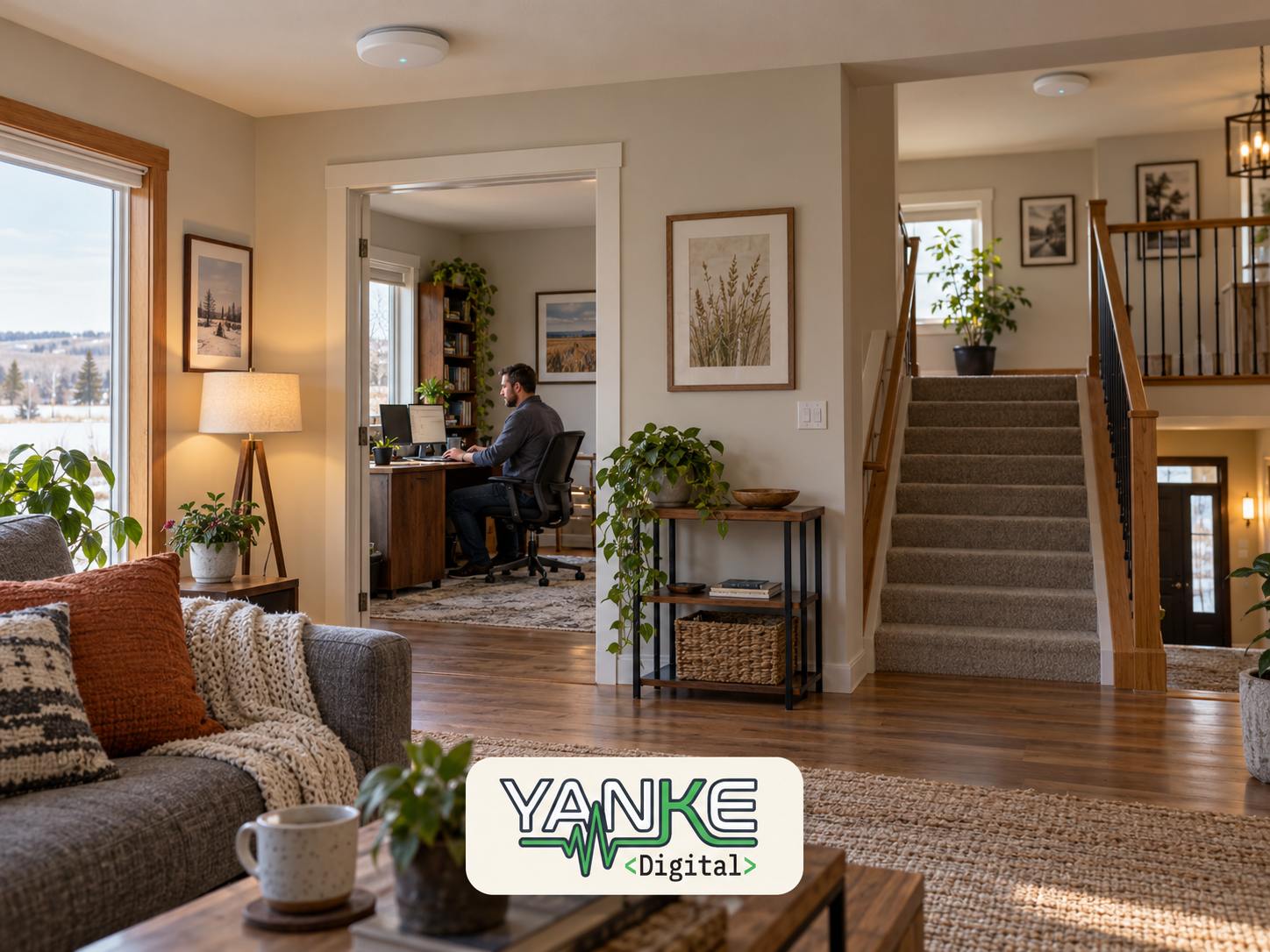
Access points connected to your network by cable, often mounted on ceilings, are the approach most professionals prefer when it’s possible. Each one gets a full-speed connection back to the network, and they’re placed exactly where coverage is needed.
The trade-off: backhaul
Here’s the part that explains a lot. Every access point or mesh unit has to talk two ways: to your devices, and back to the rest of the network. That connection back to the network is called backhaul.
In a wireless mesh, the backhaul usually travels over WiFi too. That means each unit is using some of its airtime just to relay traffic to the next unit. The farther a device is from the main router, especially through multiple hops, the more speed and responsiveness can drop. Some mesh systems include a dedicated radio for backhaul, which helps, but it’s still wireless and still affected by walls.
With wired backhaul, each unit connects by cable. The units spend their airtime serving your devices instead of relaying for each other. Many mesh systems also support wired backhaul, so if you have cable in the right places, you can get the best of both.
So the honest ranking, roughly: wired access points or wired-backhaul mesh, then wireless mesh with a dedicated backhaul radio, then basic wireless mesh, then extenders.
Placement matters more than the brand
Even great equipment struggles in the wrong spot. Some general guidelines:
- Put access points in open, central areas, not in cabinets, closets or behind TVs.
- Ceiling mounting usually gives the most even coverage.
- Cover each floor rather than relying on one unit to punch through.
- Keep units away from large metal objects, aquariums and appliances.
- Don’t over-pack them. Too many access points close together can interfere with each other.
- Think about outdoor spaces, garages and detached buildings separately.
A quick home WiFi check
- Walk the house with your phone and note where speed drops or calls struggle.
- Note where the router is relative to where you actually use WiFi.
- Check whether cable runs exist near problem areas.
- List which devices need the best connection: work laptops, TVs, cameras.
WiFi designed for your space
At Yanke Digital, WiFi coverage designed for the space is one of the most common places our clients start. We work with homes, businesses and multi-unit buildings in Saskatoon and across Saskatchewan.
We start with what you have: where the internet comes in, what equipment you already own, existing wiring, and the rooms that frustrate you. Sometimes your current gear can stay with better placement or a wired backhaul. Sometimes a few cable runs and ceiling access points solve it for good. We’ll lay out the equipment, installation and pricing together so you can choose.
Then we install, configure and test coverage throughout the space, and walk you through how to manage the network. Ongoing support is available.
Fix the dead zones
Call 1-888-698-8001 and tell us where the WiFi gives up, or build a starting point with our free project planner. You don’t need to share contact details.
Learn more about our home services or our work for businesses.